How to Set Up PS2 BIOS on DamonPS2 Pro Emulator Complete Guide (2026)
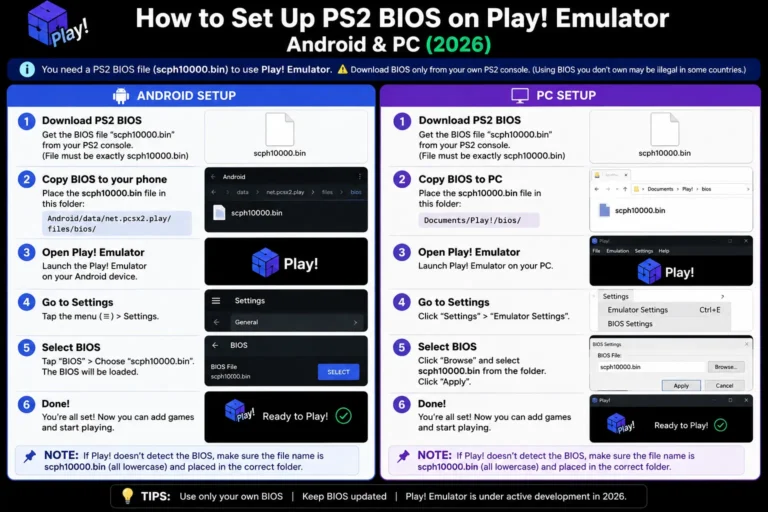
In this guide, you will learn step-by-step how to set up PS2 BIOS in DamonPS2 Emulator and which PS2 BIOS files are actually supported by the emulator. Many users face issues like a black screen or games not loading, but the main reason is usually an incorrect BIOS setup.DamonPS2 Pro needs a standard PS2 BIOS .BIN file in the same format used by PCSX2 and AetherSX2.
What Is DamonPS2 Pro?
DamonPS2 is considered one of the fastest PS2 emulators for Android devices. It is designed to let users play classic PlayStation 2 games directly on their smartphones. Just like PPSSPP emulator is used for PSP games. First released in 2017, it became one of the most downloaded PS2 emulators on Android thanks to its simple setup and broad device support.
It comes in two versions: a free ad-supported edition and a paid Pro version. For anyone planning to use it seriously, the Pro version is the better choice.
One important thing to know before downloading: DamonPS2 Pro requires an active internet connection every time it launches. The app uses an online DRM system to verify your purchase. No internet means DamonPS2 Pro will not open. This is a real limitation if you plan to game offline.
DamonPS2 Free vs Pro Key Differences
| Feature | Free | Pro |
| Price | Free | ~$8–10 Price |
| Ads | Frequent | None |
| Save State Slots | Limited | Multiple |
| Widescreen Mode | Locked | Unlocked |
| Skip BIOS Intro | No | Yes |
| Full Settings Access | Restricted | Full |
| Internet Required | Yes | Yes (DRM) |
| Game Compatibility | ~85% | ~90% |
For casual testing, the free version works fine. For a proper gaming setup, Pro removes the limitations that make the free version frustrating.
What Is the PS2 BIOS and Why DamonPS2 Needs It?
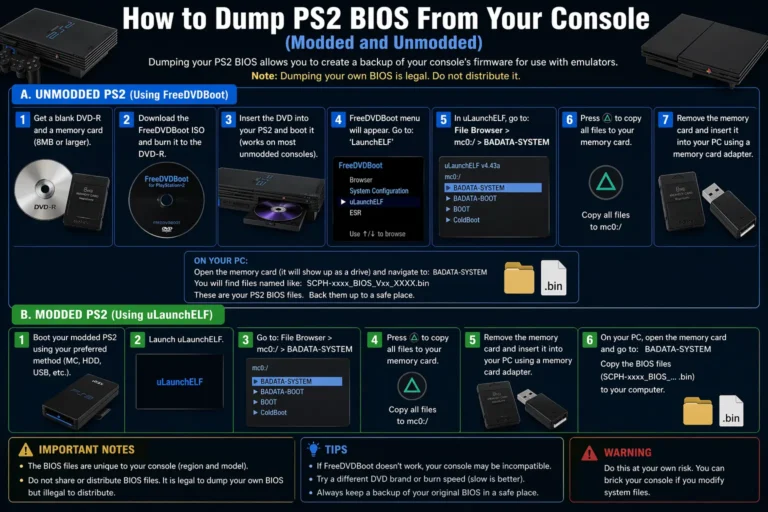
The PS2 BIOS Basic Input/Output System) is the original firmware Sony built into every PlayStation 2 console. When you power on a real PS2, the BIOS activates first. It checks the hardware, reads the game disc, verifies the region, and loads the game. Every function depends on it.
DamonPS2 recreates the PS2 hardware environment on your Android phone, but it still needs those original firmware instructions to work. The BIOS file is what tells the emulator how to boot games, handle saves, and manage controllers. Without it, DamonPS2 cannot load anything.
The file is a .BIN format file, exactly 512Kb in size. Sony owns the copyright, so DamonPS2 cannot bundle it. You download it separately and import it once.
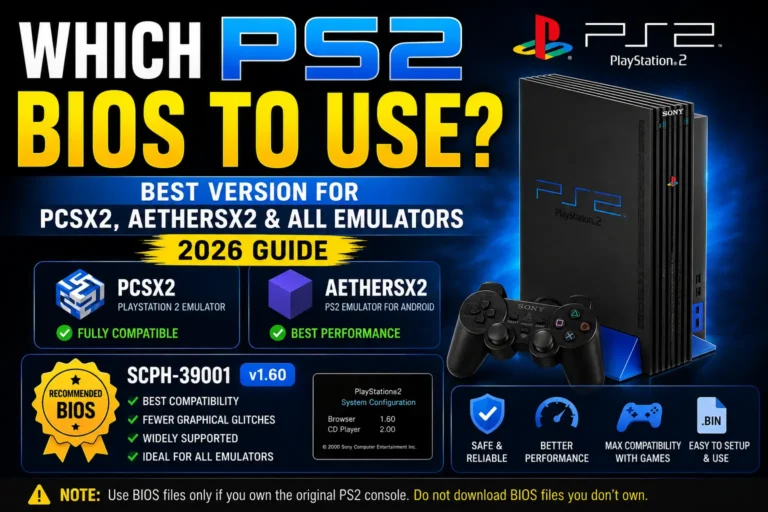
Sony manufactured four regional BIOS versions for four global markets. Using the wrong region is the single most common cause of black screens in DamonPS2. Pick based on your game library.
Which PS2 BIOS Does DamonPS2 Emulator Support?
DamonPS2 supports standard PlayStation 2 BIOS files in .BIN format. These BIOS files are the original system firmware used in real PS2 consoles. The emulator uses this BIOS to boot games and create a proper PS2 environment on Android.
DamonPS2 Supported BIOS Versions
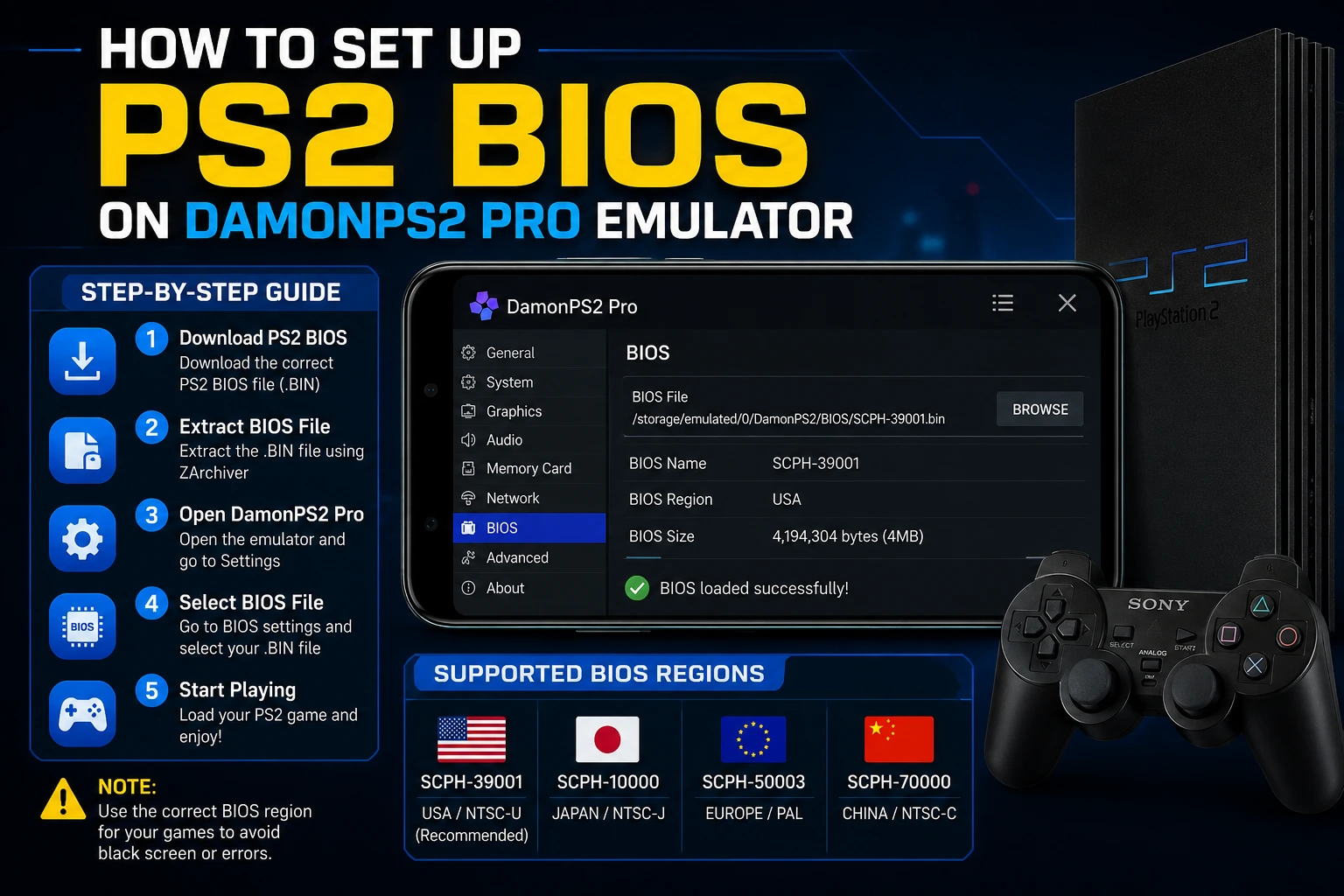
DamonPS2 works with different regional PS2 BIOS files, including:
- SCPH-39001 (USA / NTSC-U) – Most recommended and widely compatible
- SCPH-10000 (Japan / NTSC-J) – Used for Japanese games
- SCPH-50003 (Europe / PAL) – Used for European and Australian games
- SCPH-70000 (China) – Rare Chinese region games
Important Note
The Ps2 BIOS file must always be in .BIN format (around 512KB). If you use the wrong region BIOS, games may show a black screen or fail to load. Always match the BIOS region with your game region for smooth performance.
How to Set Up PS2 BIOS on DamonPS2 Pro Android
This process takes under five minutes with the BIOS file ready.
What you need:
- DamonPS2 Free or Pro installed from Google Play
- PS2 BIOS .BIN file downloaded
- ZArchiver (free on Google Play)
- PS2 game files in ISO, BIN, or CSO format
Step 1: Extract the BIOS File
Open ZArchiver. Navigate to your downloaded BIOS ZIP. Long-press it and tap Extract. Save to a clean folder — Internal Storage/DamonPS2/BIOS/ works well.
After extraction, confirm you see a plain .BIN file approximately 512Kb in size, not a ZIP, not a folder, just the raw .BIN file.
Step 2: Grant Storage Permission
Open DamonPS2. If a permissions pop-up appears, tap Allow for storage access. Without this, DamonPS2 cannot read files from your device.
If you missed the pop-up, go to Android Settings > Apps > DamonPS2 > Permissions > Storage and enable it manually.
Step 3: Open DamonPS2 Settings
Tap the menu icon (three dots or lines) in the top corner of the DamonPS2 main screen. Select Settings from the menu.
Step 4: Select Your BIOS File
Inside Settings, find PS2 BIOS or BIOS Configuration.
Tap Browse or Select BIOS File.
Navigate to Internal Storage/DamonPS2/BIOS/ and tap your .BIN file (for example SCPH-39001.bin).
DamonPS2 loads the file and returns to Settings. You will see the filename displayed in the BIOS field — this confirms it is active.
If the file browser does not show your storage, manually enter the full path in the BIOS field:
/storage/emulated/0/DamonPS2/BIOS/SCPH-39001.bin
Step 5: Load a PS2 Game
Return to the DamonPS2 main screen. Tap the folder icon or Open Game. Navigate to your game folder and tap your ISO, BIN, or CSO file.
DamonPS2 loads the BIOS, authenticates the disc, and starts the game. First launch may take a few extra seconds as the BIOS initializes — this is normal.
Best DamonPS2 Android Settings for Smooth Gameplay
Performance varies significantly by device. Use these settings as your starting point.
High-End Devices — Snapdragon 835 and Above / 6GB+ RAM
| Setting | Value |
| Rendering Resolution | 2x |
| Frame Skip | Disabled |
| Skip BIOS Logo | Enabled |
| Widescreen | Enabled (Pro) |
| Sound Quality | High |
Mid-Range Devices — Snapdragon 730 to 865 / 4GB RAM
| Setting | Value |
| Rendering Resolution | 1x Native |
| Frame Skip | Auto |
| Skip BIOS Logo | Enabled |
| Widescreen | Enabled for supported games |
| Sound Quality | Medium |
Budget Devices — Below Snapdragon 730 / 2–3GB RAM
| Setting | Value |
| Rendering Resolution | 1x Native |
| Frame Skip | Manual (set to 1) |
| Skip BIOS Logo | Enabled |
| Widescreen | Off |
| Reduce Sound Quality | Enabled |
Three quick performance tips:
Skip BIOS Logo: (Pro only) — skips the PlayStation startup animation and loads games faster. Most games work fine with this enabled.
Frame Skip: only enables if your device drops below full speed. It helps on slow devices, but makes animation look choppy. Try Auto before enabling manual skip.
Reduce Sound Quality: on budget devices, enabling this recovers 10–15% processing headroom for better frame rates. The audio quality difference is barely noticeable during gameplay.
How to Set Up PS2 BIOS in DamonPS2 on PC Using BlueStacks Emulator
If you want to play PS2 games on your PC, you can use an Android emulator like BlueStacks. After installing BlueStacks, you can install DamonPS2 Emulator inside it, just like you do on a mobile phone. Then you can also add a PS2 BIOS and start playing games easily on your computer.
This method is very useful for users who don’t have a high-end Android phone but still want to enjoy PS2 gaming on a bigger screen.
Step 1: Install BlueStacks on PC
First, you need to install an Android emulator on your computer.
- Go to the BlueStacks official website
- Download the BlueStacks setup file
- Install it on your PC
- Open BlueStacks and sign in with your Google account
Think of BlueStacks like a “virtual Android phone” inside your computer.
Step 2: Install DamonPS2 Emulator
Now you will install the PS2 emulator inside BlueStacks.
- Open the Google Play Store in BlueStacks
- Search: DamonPS2 Emulator
- Click Install
- Wait for the installation to complete
This is the same process as installing apps on a mobile phone.
Step 3: Add PS2 BIOS Files
After installing the emulator, you need a BIOS setup.
- Open DamonPS2
- Go to BIOS settings
- Select and import the BIOS file
- Save settings
BIOS is like the “brain” that helps the emulator run PS2 games properly.
Step 4: Load PS2 Games (ISO Files)
Now you can add games.
- Download PS2 game files (ISO format)
- Open DamonPS2
- Click “Load Game”
- Select your ISO file
- Start playing
Important Note
- PC should be good enough for smooth gameplay
- Use at least 4GB RAM (minimum)
- Some games may lag depending on system performance
DamonPS2 Top Key Features
2X–5X Resolution (1080p HD)
This feature improves the graphics quality of PS2 games and makes them sharper.
It allows games to run in HD resolution for a better visual experience.
Widescreen Support (16:9)
It adjusts games to fit modern widescreen displays.
This removes black bars and gives a full-screen gaming experience.
Gamepad Support
You can connect an external controller to play games.
It makes the gameplay feel like a real PS2 console experience.
Multi-Threading Acceleration
It uses multiple parts of the CPU to improve performance. This helps games run smoother and reduces lag.
Multiple ROM Support (.iso, .bin, .img, .nrg)
The emulator supports different PS2 game file formats. This allows you to run most PS2 games easily.
Common DamonPS2 BIOS Errors and Exact Fixes
BIOS Not Detected
Cause: File still inside ZIP, wrong path, or storage permission missing.
Fix: Extract the ZIP with ZArchiver first. Confirm a plain .BIN file exists at approximately 4MB. In DamonPS2 Settings > BIOS > Browse, navigate directly to that .BIN file. If the browser is empty, enable Storage permission in Android Settings > Apps > DamonPS2 > Permissions.
Black Screen After Loading a Game
Cause: BIOS region does not match game region — the most common error by far.
Fix: Check your game’s region. USA games need SCPH-39001 (NTSC-U). Japanese games need SCPH-10000 (NTSC-J). European games need SCPH-50003 (PAL). Switch to the matching BIOS in Settings and reload.
Also, try enabling Skip BIOS Logo in Pro settings — some games boot more reliably with it enabled.
Game Runs Too Fast or Audio Out of Sync
Cause: PAL game running through NTSC BIOS. The 50 Hz vs 60 Hz timing mismatch causes this.
Fix: Switch to the PAL BIOS (SCPH-50003) for PAL-region games. No DamonPS2 setting can compensate for this mismatch; only the correct regional BIOS fixes it.
Game Runs Too Slowly
Fix: Lower rendering resolution to 1x Native. Enable Frame Skip on Auto. Reduce Sound Quality. Test each change individually to find which helps most on your specific device.
Audio Crackling or Popping
Fix: Go to Settings > Audio and increase the audio buffer size. Enable Reduce Sound Quality if crackling continues. On very low-end devices, disabling sound entirely is a last-resort option to prioritize frame rate.
DamonPS2 Pro Crashes on Launch
Cause: No internet connection (DRM check fails), corrupted app data, or low device memory.
Fix 1 Internet: Connect to WiFi or mobile data. DamonPS2 Pro requires the internet to verify your purchase on every launch.
Fix 2 Cache: Android Settings > Apps > DamonPS2 > Storage > Clear Cache. Relaunch.
Fix 3 Reinstall: Uninstall and reinstall from Google Play. Your BIOS file and game files on storage are not affected.
Save Data Not Persisting
Fix: Confirm Storage permission is enabled. Confirm BIOS region matches your game. In DamonPS2 settings, verify the memory card save path points to a writable location on your internal storage.
BIOS File Shows 0 Bytes or Wrong Size
Fix: The download was incomplete. Delete the file. Re-download the full ZIP. After downloading, verify that the extracted .BIN is exactly 512 KB before importing.
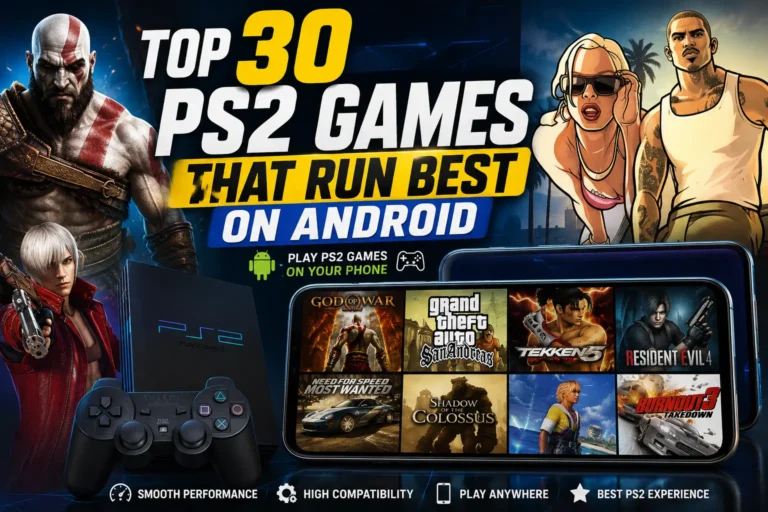
Best PS2 Games That Run Well on DamonPS2 Emulator
| Game | Recommended BIOS | Performance |
| GTA San Andreas | SCPH-39001 (USA) | Full speed — all tiers |
| GTA Vice City | SCPH-39001 (USA) | Full speed — all tiers |
| Tekken 5 | SCPH-39001 (USA) | Full speed — mid-range+ |
| God of War | SCPH-39001 (USA) | Good — high-end |
| Resident Evil 4 | SCPH-39001 (USA) | Full speed — mid-range+ |
| Dragon Ball Z Budokai 3 | SCPH-39001 (USA) | Full speed |
| Crash Bandicoot series | Any Region | Full speed — all tiers |
| Need for Speed Underground 2 | SCPH-39001 (USA) | Full speed |
| Sonic Heroes | Any Region | Full speed — all tiers |
| Gran Turismo 3 | SCPH-39001 (USA) | Good — high-end |
| Mortal Kombat: Armageddon | SCPH-39001 (USA) | Full speed — mid-range+ |
| WWE SmackDown vs Raw | SCPH-39001 (USA) | Full speed — mid-range |
FAQs
Do I need the BIOS to use DamonPS2? Yes. DamonPS2 requires a valid PS2 BIOS file to run any game. Without it, no game will load — not even the main menu.
Which BIOS version is best for DamonPS2 Pro? SCPH-39001.bin (USA, NTSC-U). It is the most tested version across all DamonPS2 builds and covers the majority of popular English PS2 games.
Can I use the same BIOS for DamonPS2 and AetherSX2? Yes. Both emulators use the standard .BIN format. The same file works in DamonPS2, AetherSX2, NetherSX2, and PCSX2 without modification.
Why does DamonPS2 Pro need the internet to run? DamonPS2 Pro uses an online DRM system to verify your purchase on every launch. Without an active internet connection, the Pro version will not open.
Why is my game showing a black screen after I set the BIOS? Almost always a region mismatch. Your BIOS region does not match your game’s region. USA games need an NTSC-U BIOS. Japanese games need NTSC-J. European games need PAL. Switch to the matching BIOS file.
Can DamonPS2 run PAL games? Yes, but only with the PAL BIOS (SCPH-50003). Using an NTSC BIOS with PAL games causes incorrect game speed and audio sync problems that no settings change can fix.
Is DamonPS2 Pro worth buying when AetherSX2 is free? For most users in 2026, NetherSX2 (the free AetherSX2 continuation) offers better compatibility, more features, and no DRM. DamonPS2 Pro is worth it only if you already own it or have a specific preference for its interface.
Conclusion
Setting up PS2 BIOS on DamonPS2 Pro is straightforward once you have the right file. Download SCPH-39001.bin for English games, extract it with ZArchiver, and import it through Settings > BIOS. That single step unlocks the entire PS2 game library on your Android phone.
If your games are European, use the PAL BIOS. If they are Japanese imports, use the NTSC-J BIOS. Getting the region right from the start eliminates the black screen problem that trips up most new users.
And if you want to explore further in 2026, NetherSX2 uses the same BIOS files and the same setup process, with higher compatibility and active ongoing updates. Worth having both installed.