How to Set Up PS2 BIOS on Play! Emulator Android, and PC (2026)
Setting up a PS2 emulator and spending hours hunting for a BIOS file is one of the most common frustrations in retro gaming. If you chose Play! as your emulator, you are actually ahead of the curve because Play! is the only major PS2 emulator that does not need a BIOS file at all.
This guide covers everything. What Play! is, what makes it different from every other PS2 emulator, how to set it up on Android, iOS, and PC, how to fix the errors most users run into, and which games actually run well on it today.
What Is Play! PS2 Emulator?
Play! is a free, open-source PlayStation 2 emulator developed by Jean-Philip Desjardins (jpd002) and officially available at purei.org. On Android, it is published on the Google Play Store by Virtual Applications and has crossed 1,000,000+ downloads since its release on August 18, 2020.
The current version is 0.70, updated on June 2, 2025, and it runs on Android 4.4 and above, meaning it works on a huge range of devices including budget phones and older hardware that cannot run heavier emulators like AetherSX2 or DamonPS2.
The emulator was built around one clear goal: make PS2 gaming as simple and accessible as possible on every platform. No BIOS hunting. No complex configuration. No regional file matching. Download the app, load your game, and play.
What makes Play! genuinely unique is its coverage. It runs on Android, iOS, Windows, macOS, Linux, and in a web browser at playjs.purei.org. It is the only PS2 emulator available on the Apple App Store without jailbreaking. For iPhone users who want PS2 emulation without technical headaches, Play! is currently the only practical option.
One important note the Play Store listing itself makes clear: “This is still under active development and will probably not work with all your favorite games.” Play!’s compatibility sits around 60% of the PS2 library. For casual gaming and testing, it works well. For the full PS2 library at maximum quality, PCSX2 on PC or NetherSX2 on Android deliver better results. But for zero-configuration setup on any device — Play! is where you start.
| Detail | Information |
| App Name | Play! PS2 Emulator |
| Developer | Jean-Philip Desjardins (jpd002) |
| Publisher on Play Store | Virtual Applications |
| Current Version | 0.70 |
| Last Updated | June 2, 2025 |
| Android Requirement | Android 4.4 and above |
| Play Store Downloads | 1,000,000+ |
| Play Store Release Date | August 18, 2020 |
| App Size | 14 MB |
| Content Rating | Rated for 3+ |
| BIOS Required | No |
| Official Website | purei.org |
| Cost | Free |
Play! Emulator Key Features
No BIOS Required: The Biggest Advantage
This is Play!’s defining feature and the reason most people choose it over other emulators. Play! uses High Level Emulation (HLE); it recreates the PS2’s core system behavior entirely in its own code without needing Sony’s original firmware. No BIOS file. No import screen. No regional version to worry about.
Most PS2 emulators, PCSX2, AetherSX2, and DamonPS2, refuse to load a single game until you source and configure a BIOS file. With Play!, that entire step does not exist for the majority of users.
For the small number of games that have trouble with HLE, Play! does support adding a real PS2 BIOS as an optional override covered in the setup section below.
Runs on Android 4.4 and Above
At just 14MB in size, Play! is one of the lightest PS2 emulators available. More importantly, it works on Android 4.4 and above, which means it runs on a significantly wider range of devices than emulators that require Android 8.0 or newer.
Budget phones, older mid-range devices, and entry-level hardware that cannot run AetherSX2 or DamonPS2 often run Play! without issues. Devices like the Vivo Y21 and Itel S665L, confirmed as compatible on the Play Store listing, show that Play! targets accessibility first.
This makes Play! the practical choice when heavier emulators simply will not install or run on your device.
Works Across Every Major Platform
Play! is the only PS2 emulator in 2026 that runs natively on Android, iOS, Windows, macOS, Linux, and a web browser, all from the same project. If you move between an iPhone and a Windows PC, Play! works on both without any different setup or different BIOS files.
Web Browser Version
Visit playjs.purei.org in any modern browser, and Play! runs PS2 games directly in the browser without any download or installation. Upload an ISO file when prompted, and the emulator starts. Performance is limited, but it works on any device that has a browser — including Chromebooks, old laptops, and school or work computers where you cannot install software.
Save States
Play! supports save states across all platforms. Save your exact game position at any moment, completely independent of the game’s own save system. Multiple slots are available per game. This is especially useful for games with long gaps between checkpoints or for picking up sessions where you left off without finding a save point.
Controller Support
Play! supports on-screen touchscreen controls with a customizable virtual gamepad, Bluetooth controllers including DualShock 4, DualSense, and Xbox controllers on both Android and iOS, and keyboard plus gamepad input on PC. Controllers paired before launching the app are detected automatically at startup.
Resolution Upscaling
Play! supports basic internal resolution scaling above the PS2’s native output. On capable Android devices and PC, increasing resolution above 1x produces noticeably sharper visuals. Budget devices and older phones should stay at 1x native for stable performance without frame drops.
Arcade Mode Namco System 246/256
Play! supports Namco System 246/256 arcade boards — the arcade hardware that powered original cabinet versions of Tekken 5 and Soul Calibur III. These boards run on PS2 hardware architecture, and Play!’s HLE can emulate them alongside standard PS2 games.
This means you can run the actual arcade versions of these titles, different from the home PS2 releases, directly in Play!. No other major PS2 emulator currently supports this. Use the command Play.exe arcade “arcade_id” on PC to access it.
| Feature | Detail |
| BIOS Required | No — HLE built in |
| Android Minimum | Android 4.4 |
| App Size | 14 MB |
| Platforms | Android, iOS, Windows, macOS, Linux, Browser |
| iOS App Store | Yes — no jailbreak |
| Save States | Yes — multiple slots |
| Controller Support | Touchscreen, Bluetooth, keyboard |
| Resolution Upscaling | Yes — basic |
| Arcade Mode | Namco System 246/256 supported |
| Game Compatibility | ~60% of PS2 library |
| Play Store Downloads | 1,000,000+ |
How to Set Up PS2 BIOS on Play! Emulator
Important: Does Play! Need a BIOS?
No. Play! runs without a PS2 BIOS file using HLE. For most users on Android, iOS, and PC, the entire BIOS setup step does not exist. You install Play!, load a game ISO, and it works.
You only need to add a BIOS if a specific game fails to boot through HLE. The optional BIOS steps are included at the end of each platform guide below.
Setup on Android
Step 1:Install Play! from Google Play
Open the Google Play Store. Search “Play! PS2 Emulator.” Install the official app published by Virtual Applications. The app is free, rated for 3+, and requires Android 4.4 or above. The download size is 14MB.
After installing, open Play! once and close it completely. This first launch creates the folder structure the app needs on your device before you add any game files.
Step 2:Transfer Your PS2 Game File
Transfer your PS2 game to your Android device. Create a clean folder — Internal Storage/PS2/Games/ and place your game file there.
Supported formats:
| Format | Notes |
| .ISO | Standard disc image — most compatible |
| .BIN | Raw disc image |
| .CHD | Compressed — saves storage space |
| .ELF | Executable file |
| .CSO | Compressed ISO variant |
Step 3: Open Play! and Load Your Game
Open Play!. Tap the + button or folder icon on the main screen. Navigate to your game file and tap it. Play! loads it immediately using HLE. No BIOS import screen will appear — this is correct.
Step 4: Set Up Your Controller
For Bluetooth controllers, pair through Android Settings > Bluetooth before opening Play!. The app detects paired controllers automatically at launch.
For touchscreen, go to Settings > Input to adjust button position, size, and opacity.
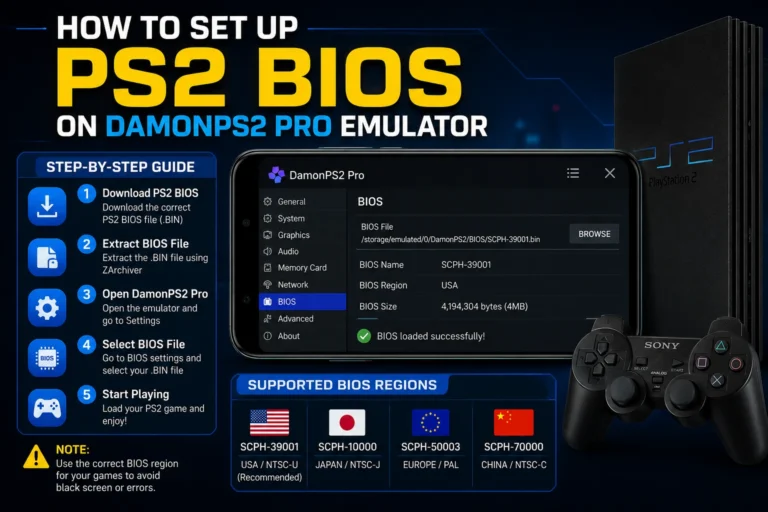
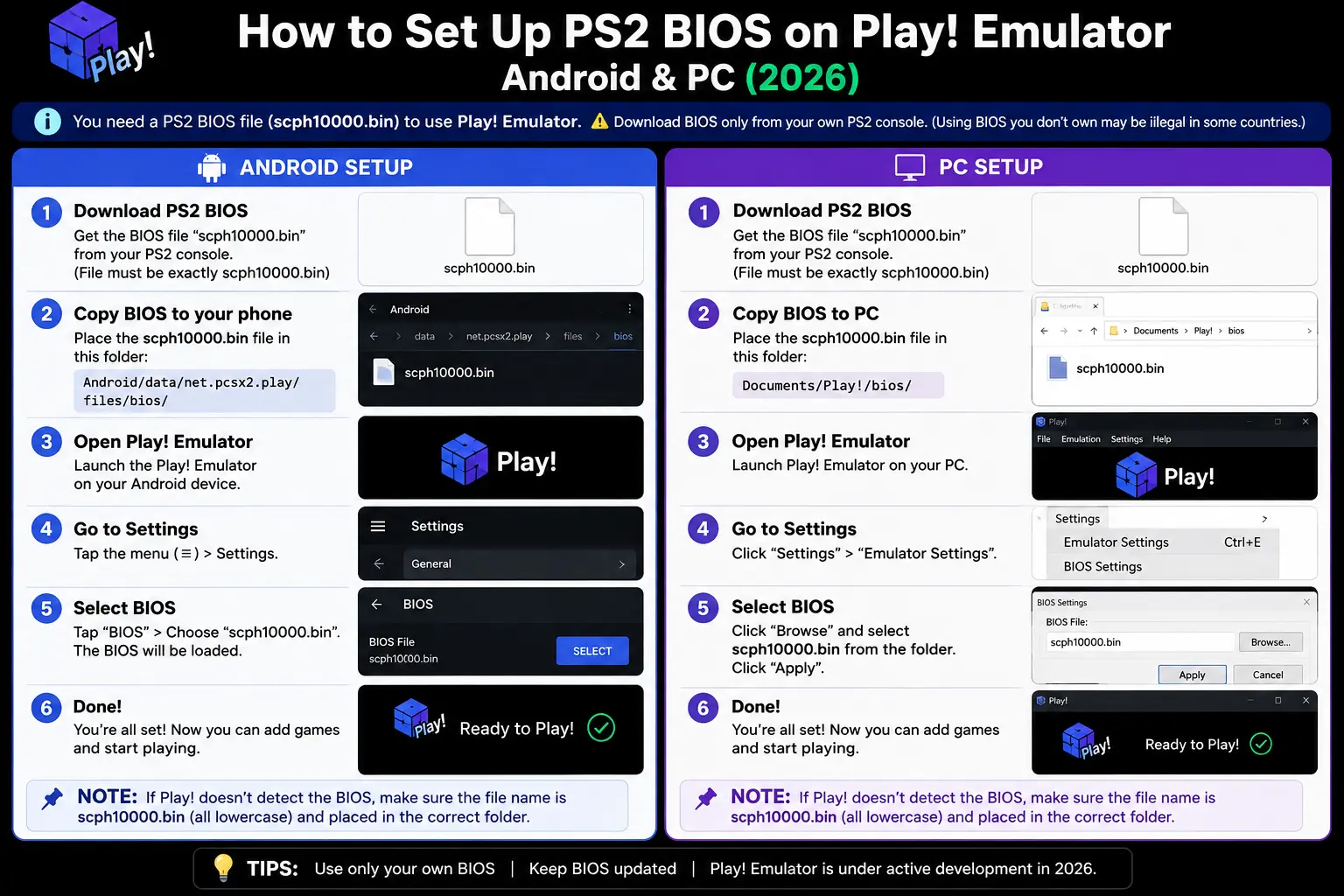
Step 5: Adding BIOS (Only If a Specific Game Fails)
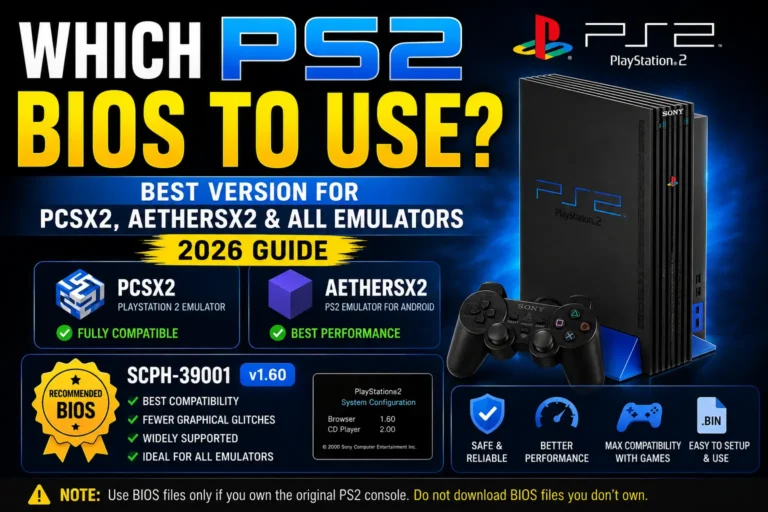
Download a PS2 BIOS .BIN file. SCPH-39001.bin (USA) is recommended for most English games. Extract it from ZIP using ZArchiver, free on Google Play. Place the .BIN file in Internal Storage/PS2/BIOS/.
Open Play! > Settings > System > BIOS > Browse > select the .BIN file. Return to the main screen and reload the game.
Setup on PC Windows, macOS, Linux
Step 1: Download Play!
Go to purei.org and download the latest build for your OS.
Windows — downloads as ZIP. Extract to C:\Play!\. Run Play.exe directly — no installer needed.
macOS — downloads as .dmg. Drag Play! to Applications. If macOS blocks first launch, go to System Settings > Privacy & Security > Open Anyway.
Linux — download binary or build from source on GitHub. Run chmod +x Play, then ./Play.
Step 2 — Load a Game
Go to File > Load Disc Image and select your ISO. Or drag and drop your ISO directly onto the Play! window.
Command line options:
Play.exe disc “C:\PS2\Games\Game.iso”
Play.exe disc “game.iso” –fullscreen
Play.exe arcade “arcade_id.”
Play.exe state “1.”
Adding BIOS on PC (Optional):
Place .BIN file in C:\Play!\BIOS\ on Windows or ~/Play!/BIOS/ on macOS. Open Play! > Settings > Preferences > System > BIOS Path > Browse > select file > save > restart Play!.
Common Issues and Fixes
Black Screen When Loading a Game
Fix 1 Add a BIOS: Some games depend on firmware-level behavior that HLE cannot replicate. Add a real PS2 BIOS through Settings > System > BIOS and reload.
Fix 2 Convert to ISO: Some disc image formats cause detection issues. Convert your game to standard .ISO using PowerISO on PC for broadest compatibility.
Fix 3 Check compatibility: Visit github.com/jpd002/Play-Compatibility/issues — Play!’s official compatibility tracker linked directly in the Play Store listing. Search your game title. If it is listed as incompatible, adding a BIOS will not help, and the issue is a known emulation gap.
Low FPS and Slow Performance
Android: Disable Power Saving mode — this is the single most common cause of slow Play! performance on Android. Close all background apps. Lower resolution to 1x native. For sessions longer than 30 minutes, a clip-on cooling fan prevents thermal throttling that causes gradual slowdown.
iOS App Store version: Sideload Play! via AltStore and enable JIT before each session. JIT produces dramatically better frame rates than the App Store version on any iPhone model.
PC: Confirm Play! is using your dedicated GPU rather than integrated graphics. Check Display Settings > Graphics to confirm hardware acceleration is active.
Controller Not Responding
Fix: Pair your Bluetooth controller before opening Play! — not after. Go to Settings > Input and map buttons manually. Generic third-party Bluetooth pads often need full manual button mapping on first use even if they appear connected.
Audio Missing or Distorted
Fix: Check the compatibility tracker for your specific game — audio issues are documented with workarounds for many titles. Adding a real PS2 BIOS resolves audio initialization failures in some games that depend on firmware-level audio setup.
Save States Not Working on Android
Fix: Go to Android Settings > Apps > Play! > Permissions > Storage and confirm storage write access is enabled. Without this permission, save state actions appear to succeed, but nothing is actually written to disk.
Game File Not Detected on Android
Fix: Confirm the transfer completed fully — partial downloads appear as files that crash immediately on load. Place your ISO in Internal Storage/PS2/Games/ and navigate there manually using Play!’s built-in file browser.
App Crashes on Launch on iOS
Fix: Force close Play! in the app switcher. Restart your iPhone and relaunch. If crashes continue with the App Store version, sideload via AltStore for more stable JIT handling on your specific iOS version.
Best PS2 Games to Play on Play! Emulator
Play!’s official Play Store listing notes that “this will probably not work with all your favorite games” — and that is honest. Around 60% of the PS2 library is compatible. The games below have solid reported performance:
| Game | Platform | Performance | Notes |
| Tekken 5 Arcade | All | Excellent | Use –arcade on PC |
| Soul Calibur III Arcade | All | Excellent | Arcade version |
| Katamari Damacy | Android, PC | Good | NTSC-J BIOS helps |
| Rez | Android, PC | Good | Mid-range+ |
| Frequency | All | Good | Music game |
| Amplitude | All | Good | Music game |
| Ico | Android, PC | Playable | Minor glitches |
| Burnout 3 | Android, PC | Playable | Some frame drops |
| Mortal Kombat Armageddon | Android, PC | Good | Mid-range+ |
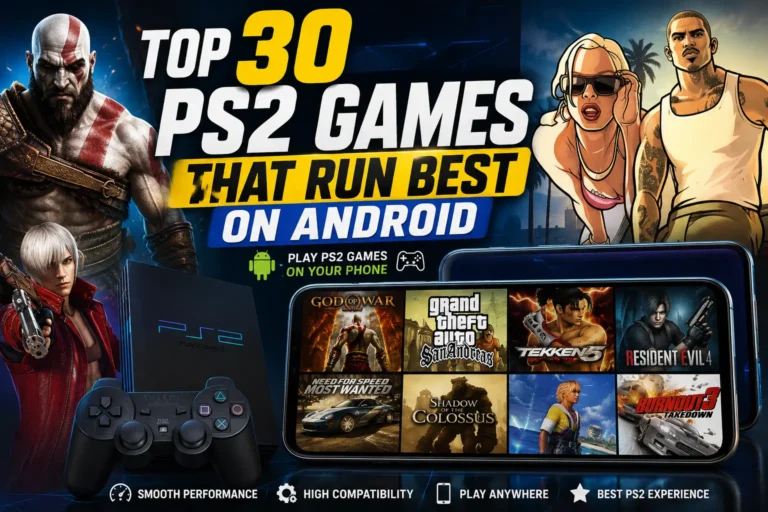
Games better on other emulators: GTA San Andreas, God of War, Final Fantasy X, Kingdom Hearts, Resident Evil 4, Devil May Cry, and Metal Gear Solid have poor or unstable compatibility on Play!. Use NetherSX2 on Android or PCSX2 on PC for these titles; they require a BIOS file but deliver near-perfect performance across the full PS2 library.
For the complete and up-to-date compatibility list, visit the link Play! itself provides in the Play Store listing: github.com/jpd002/Play-Compatibility/issues
Conclusion
Play! is the most accessible PS2 emulator in 2026. At just 14MB, requiring only Android 4.4, crossing 1 million Play Store downloads, and working on iOS without jailbreaking — it has genuinely earned its place as the go-to starting point for PS2 emulation on mobile.
No BIOS required. No technical setup. Install, load a game, play.
For specific games that do not boot through HLE, add a PS2 BIOS through Settings. For the full PS2 library at maximum quality, NetherSX2 on Android and PCSX2 on PC are the stronger dedicated options.
But if you are on iPhone, on a budget Android phone running Android 4.4, or simply want the fastest possible setup, Play! is where you start.